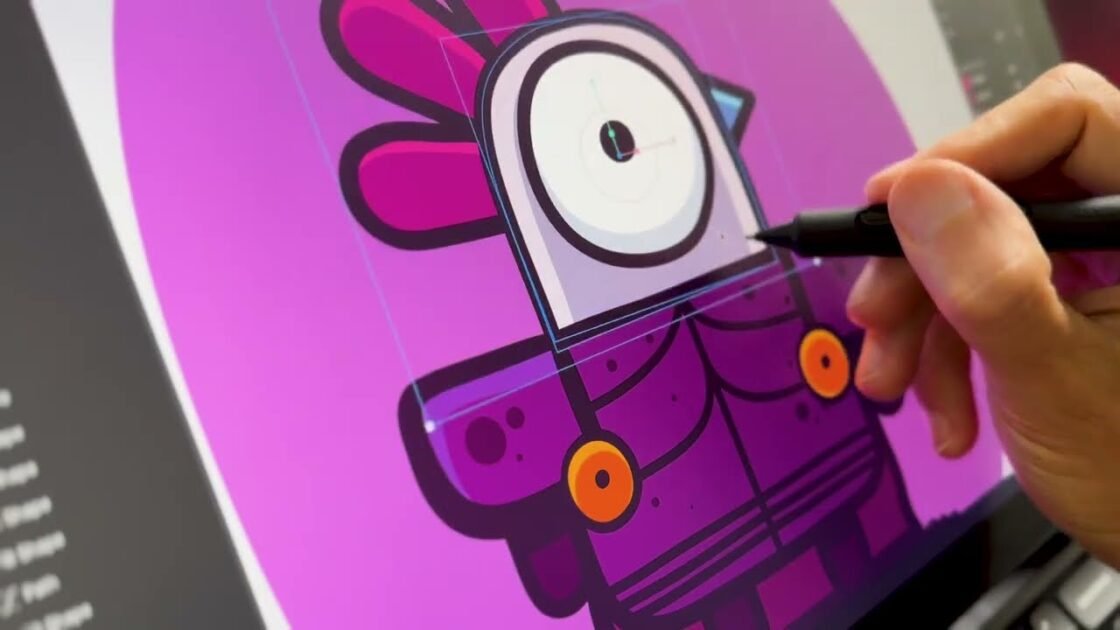


Visual precision and spatial alignment are essential foundations for building clean, professional user interface components, responsive digital assets, and high-performance real-time vector graphics. In modern interactive design environments, precise positioning ensures that vector assets render seamlessly across varying screen resolutions, mobile devices, and desktop applications. Snapping in Rive functions as an automated spatial alignment engine, giving motion designers, character animators, and digital illustrators the tools needed to position, align, center, and stack vector shapes, path nodes, and complex group hierarchies with absolute mathematical accuracy across the canvas.
Core Mechanics of Canvas Snapping
At its foundation, snapping behaves like a dynamic magnetic force operating across your workspace canvas. As you select and translate vector elements, geometric shapes, artboards, or individual path vertices, the editor continually calculates spatial coordinates relative to surrounding design elements and canvas boundaries. When an object approaches key alignment thresholds, real-time dynamic visual guides appear as bright red tracking lines across the display. These visual indicators signal that your selected asset has locked into place along a specific coordinate axis or structural boundary.
The visual feedback system provides instant clarity regarding how your artwork aligns with the surrounding layout:
- Artboard Center Bounds: Dynamic alignment guides instantly snap the exact horizontal, vertical, or unified central origin point of a selected shape directly onto the primary center axes of the canvas artboard.
- Boundary and Edge Locking: Shapes, path boundaries, and container bounds lock flush against the top, bottom, left, or right edges of the artboard, allowing you to establish exact margins, structural borders, and clean safe zones without manual numeric adjustments.
- Corner Pinning and Vertex Alignment: The spatial engine identifies the corner nodes and outer bounding box intersections of your vector artwork, allowing you to snap shapes directly onto artboard corners or distinct coordinate intersections.
Multi-Element Alignment and Complex Layouts
While aligning individual shapes to an artboard provides a foundational structure, snapping becomes far more versatile when building complex, multi-layered vector compositions, character rigs, and UI icon systems. When a design file contains multiple independent elements, the spatial alignment engine expands beyond canvas borders to evaluate relative distances between every active shape, layer, and group hierarchy simultaneously.
Working with multiple vector layers unlocks extended alignment capabilities:
- Inter-Object Edge Alignment: You can easily lock the top, bottom, left, or right edges of one vector layer flush against the corresponding edges or midpoints of adjacent artwork, making it easy to create structured grid systems, button stacks, and navigation bars.
- Cross-Element Center Matching: Multiple independent shapes can be aligned relative to one another along exact horizontal or vertical centers, eliminating the need to select objects and manually enter identical position values inside the Inspector panel.
- Node and Intersection Snapping: Anchors, vector paths, bounding box corners, and pivot points across separate shape paths can be snapped together, ensuring seamless geometric joins, continuous stroke alignments, and clean vector construction free of micro-gaps or overlapping path errors.
Direct Control and Workflow Optimization Shortcuts
Automated snapping and visual alignment guides significantly accelerate illustration and vector layout creation. However, specialized motion design workflows—such as organic character rigging, custom vector path editing, or detailed illustration tweaking—frequently require continuous, freeform element placement without magnetic interference.
The editor offers flexible toggles and quick keyboard controls to give designers full control over spatial behavior:
- On-the-Fly Shortcut Bypass: To temporarily disable magnetic snapping while adjusting an element, simply press and hold the Command key on macOS (or the Control key on Windows) while dragging your selection across the canvas. The magnetic snapping engine immediately disengages, allowing smooth, unrestricted motion across every pixel. Releasing the modifier key reactivates visual alignment guides instantly without interrupting your creative flow.
- Global Toolbar Toggle: Snapping can be globally enabled or disabled at any time using the main snapping toggle icon located in the top application control bar. Disabling this setting turns off all visual guides and automatic snapping behavior across the active editing session until toggled back on.
Optimizing Vectors for Production and Animation
Maintaining structural alignment during the initial design phase directly impacts project quality when transitioning into motion design, character rigging, and real-time execution. Misaligned vector paths, off-center rotation points, or fractional pixel placements often introduce unexpected visual artifacts during property interpolation or state machine transitions.
Leveraging systematic snapping during asset creation delivers clear production benefits:
- Symmetrical Rigging Setups: Aligning structural bones, joysticks, and rotation gizmos directly onto shape centers and vector nodes ensures clean skeletal deformation during character animation.
- Pixel-Perfect UI Assets: Aligning UI buttons, icons, and dynamic text containers flush against layout boundaries prevents pixel blurring, anti-aliasing artifacts, and rendering inconsistencies when exported to web browsers or mobile app runtimes.
- Simplified State Machine Logic: Well-structured, precisely aligned layouts reduce scene complexity, making it easier to set up interactive hover states, clip path boundaries, and responsive layout rules that adapt flawlessly to changing screen ratios.
By understanding and utilizing these snapping features, designers can maintain complete spatial control over their vector artwork, streamline asset creation, and build robust, high-performance interactive graphics ready for production environments. Youtube