
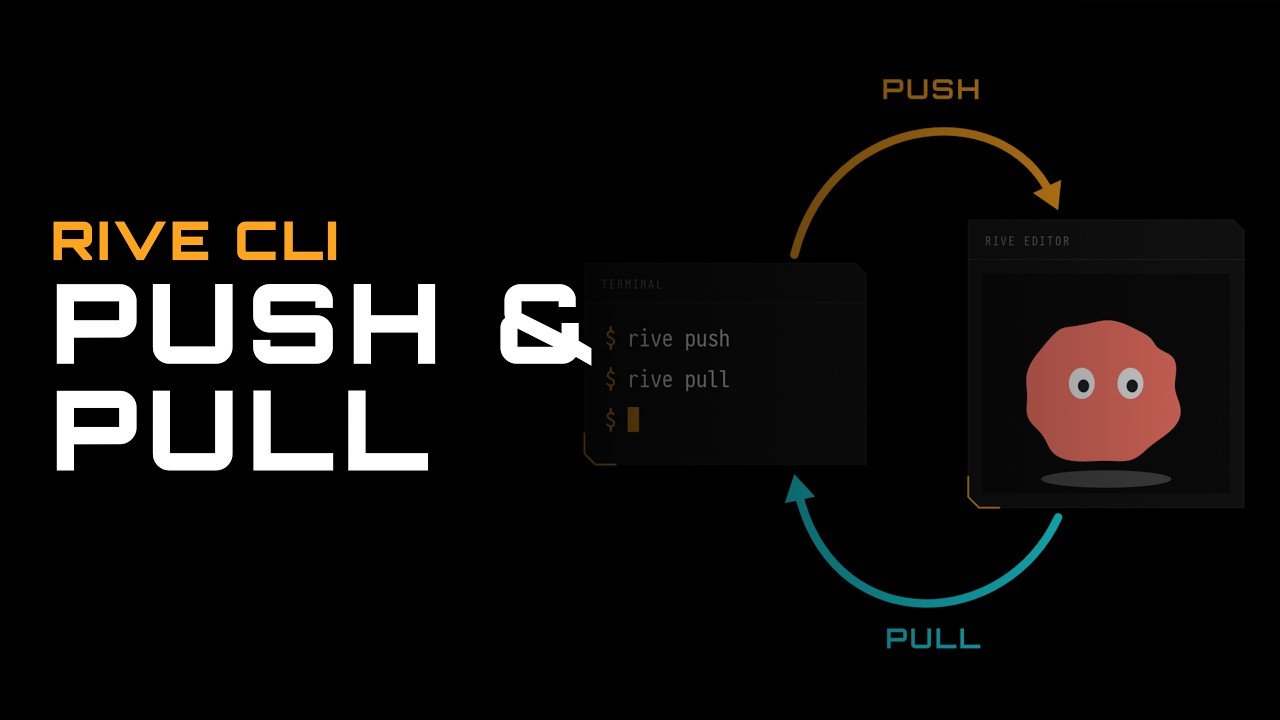
Modern interactive motion design and application development workflows are evolving beyond standalone visual tools. The introduction of the Rive Command Line Interface (CLI) along with its bi-directional synchronization commands (rive push and rive pull) creates a hybrid development pipeline. This bridge allows engineering teams and motion designers to pair AI terminal agents—such as Claude Code—with the Rive desktop or web editor.
By offloading repetitive scene setups, responsive layouts, View Model data structures, and state machine logic to programmatic terminal scripts, artists can focus entirely on high-craft visual polish, hand-drawn vector art, and timing easings without breaking underlying application contracts.
The Hybrid Development Workflow: Terminal Automation Meets Visual Craft
Building complex interactive assets—such as a dynamic digital assistant customizer—requires balancing structural code with artistic intent. Traditional workflows force animators to manually build every UI card, layout container, data variable, and keyframe property inside a graphical interface.
The CLI hybrid workflow redefines this division of labor into distinct stages:
- Terminal Agent Generation: AI coding agents process natural language prompts to output declarative scene files (
scene.rml), project manifests (rive.yaml), layout hierarchies, responsive UI chips, and state machine triggers. - Cloud and Local Synchronization: Terminal commands link local project directories to cloud workspace assets, allowing seamless file transfers back and forth.
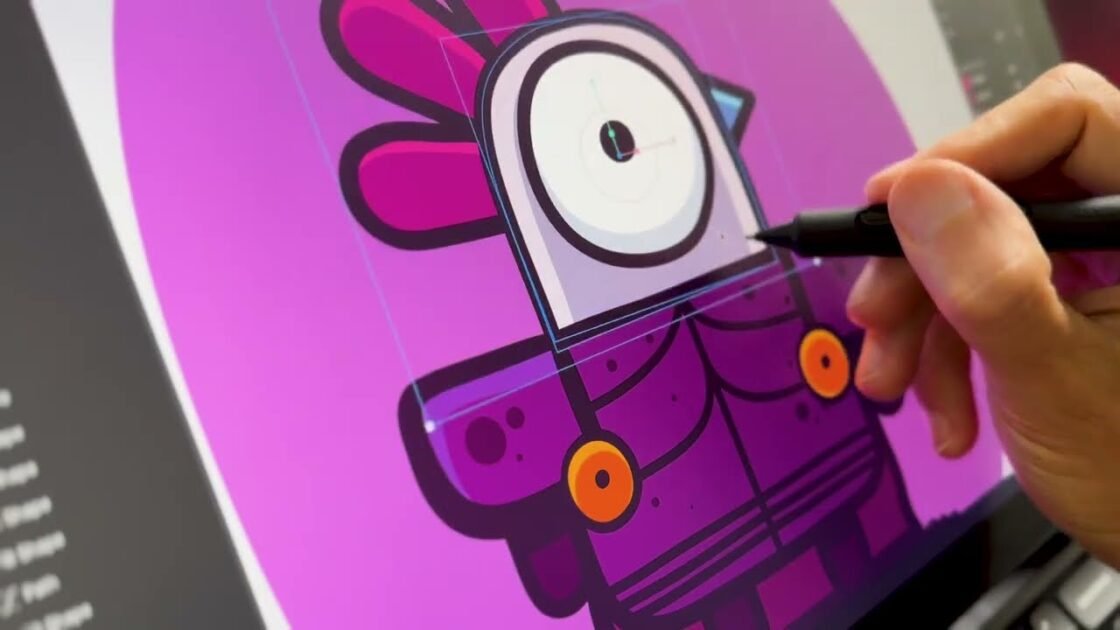
- Graphical Editor Polishing: Motion designers open synchronized cloud assets inside the visual editor to trace custom vector shapes, refine easing curves, apply layer blur effects, and fine-tune character keyframes.
Mechanics of Synchronization: rive push vs rive pull
The core mechanics connecting terminal-based agent code with the visual editing environment rely on two primary CLI commands.
+-------------------------------------------------------------------------+
|                        Local Development Directory                      |
|            (Contains scene.rml, rive.yaml, Lua scripts, assets)          |
+-------------------------------------------------------------------------+
          |                                                     ^
          |                                                     |
    rive push [name]                                      rive pull
 (Diffs & uploads text)                                (Downloads & overwrites)
          |                                                     |
          v                                                     |
+-------------------------------------------------------------------------+
|                         Cloud Rive Editor File                          |
|         (Visual vector editing, hand-drawn art, custom easings)         |
+-------------------------------------------------------------------------+
Synchronizing Local Code to the Cloud (rive push)
Running rive push in your terminal compiles your local project directory and uploads it directly to your designated workspace in the editor.
- Initial Linking: The first time you execute a push command, the CLI prompts you to select or create a target project workspace. Once linked, the CLI saves the unique file ID inside
rive.yaml, ensuring all subsequent pushes and pulls target the same editor file. - Differential Uploads: The push engine performs a diff check between local build files and the target editor file. It only updates elements that have changed—reporting exact metrics for items created, updated, deleted, or left unchanged.
- Preserving Element IDs: Unchanged layers, bone rigs, and state machine nodes maintain their unique IDs, preventing broken data bindings or unlinked animation timelines.
- Named Commit Tags: Adding a descriptive label to a push command (e.g.,
rive push -m "Added hand-drawn letter templates") creates a tagged checkpoint inside the editor’s revision history panel, making version tracking simple.
Synchronizing Cloud Assets to Local Code (rive pull)
Running rive pull inside your local project directory fetches the latest visual assets from the cloud editor and updates your local workspace files.
- Local Overwrite Protection: Because pulling downloads the cloud version directly over your local folder, the CLI prompts for explicit user confirmation before overwriting local files.
- Preserving Artistic Pass Data: Pulling ensures that hand-drawn vector paths, refined keyframe easing values, and visual gradient updates made inside the editor are saved down into local
scene.rmltext code. - Agent Iteration Readiness: Once visual updates are pulled down locally, AI agents can read the updated text files and continue generating new logic scripts, UI components, or dynamic data bindings.
Step-by-Step Practical Application: Building a Character Customizer
A practical example of this hybrid workflow is building an interactive assistant personalizer (“ZIP”) featuring dynamic shape swatches, color picks, custom name text inputs, and animated letter templates.
- Initial Agent Setup: Prompt the terminal agent to generate the project foundation. The agent creates responsive UI layouts, a View Model containing shape enums, color properties, and greeting triggers, along with base vector groups for the character.
- Initial Cloud Push (
rive push): Runrive pushto transfer the project structure to your cloud workspace. Open the file inside the editor or on a tablet device to draw custom vector shapes, refine keyframes, and set up hand-drawn asset variations. - Pull Visual Polishing (
rive pull): Return to the terminal and executerive pullto bring hand-drawn artwork and revised timing curves into your localscene.rmlcodebase. - Programmatic Asset Expansion: Direct the agent to generate individual letter artboard templates for every character in the alphabet along with a Lua script that handles real-time text entry and deletion mechanics.
- Secondary Push (
rive push): Push the newly generated letter artboards back to the cloud editor. Open the editor to trace hand-drawn letter shapes into each generated template. - Automated Refactoring Loops: If repetitive manual tasks arise during visual polish—such as deleting redundant helper paths across 26 letter artboards—simply ask the agent to pull the file, refactor the RML text automatically, and push the cleaned scene back to the editor.
Best Practices for Seamless Synchronization
To maintain clean file state and avoid sync conflicts during team collaboration or AI agent iteration, follow these essential workflow rules:
- Close Editor Files Before Pushing: Always close the target file inside the desktop or web editor before executing a
rive pushcommand to avoid file lock conflicts or unsaved canvas overwrites. - Utilize Version Control (Git): Keep your local project directory inside a Git repository. Commit local code changes before executing a
rive pullcommand so you can review code diffs and revert unneeded updates cleanly. - Respect Naming Contracts: Instruct AI agents and human artists to keep View Model property names, artboard titles, and state machine input names consistent. Maintaining these naming conventions ensures that programmatic logic scripts continue driving visual assets flawlessly.
Mastering rive push and rive pull workflows bridges terminal code generation with visual vector art, allowing product teams to build, iterate, and deploy high-performance interactive graphics faster than ever before. Youtube