

Getting started with interactive vector design and real-time animation requires a clear understanding of your asset management hub. The file browser serves as the central control panel within the editor, providing a organized environment where you can access learning resources, explore community projects, structure team workspaces, and manage project files efficiently.
Navigating the Home Section and Learning Resources
When launching the editor, the initial screen presents the Home dashboard, designed to help users quickly access essential learning materials and system updates.
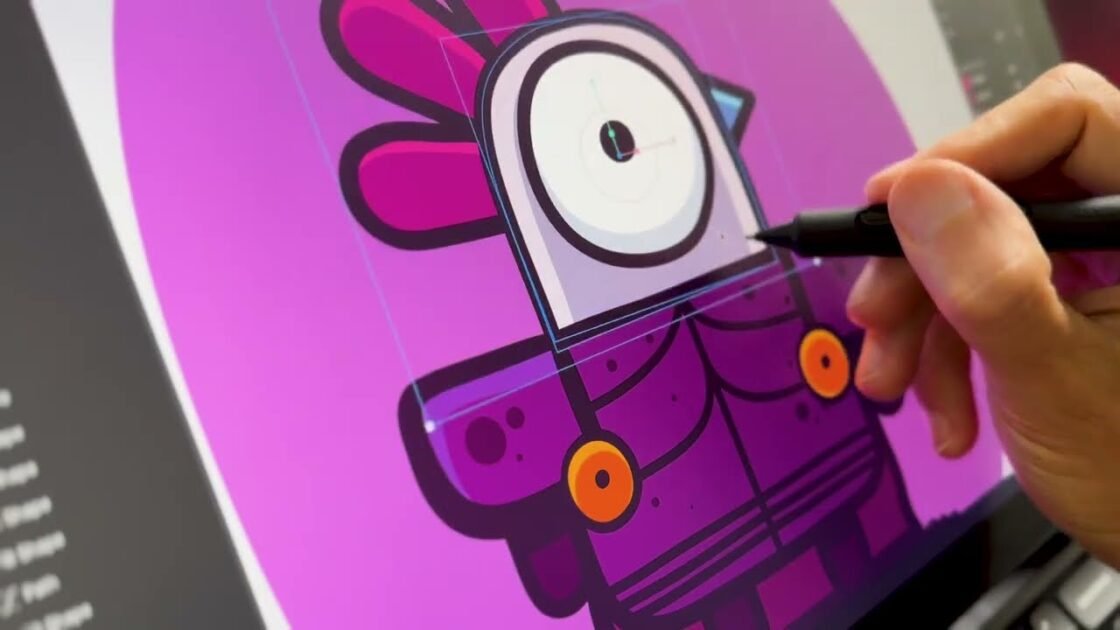
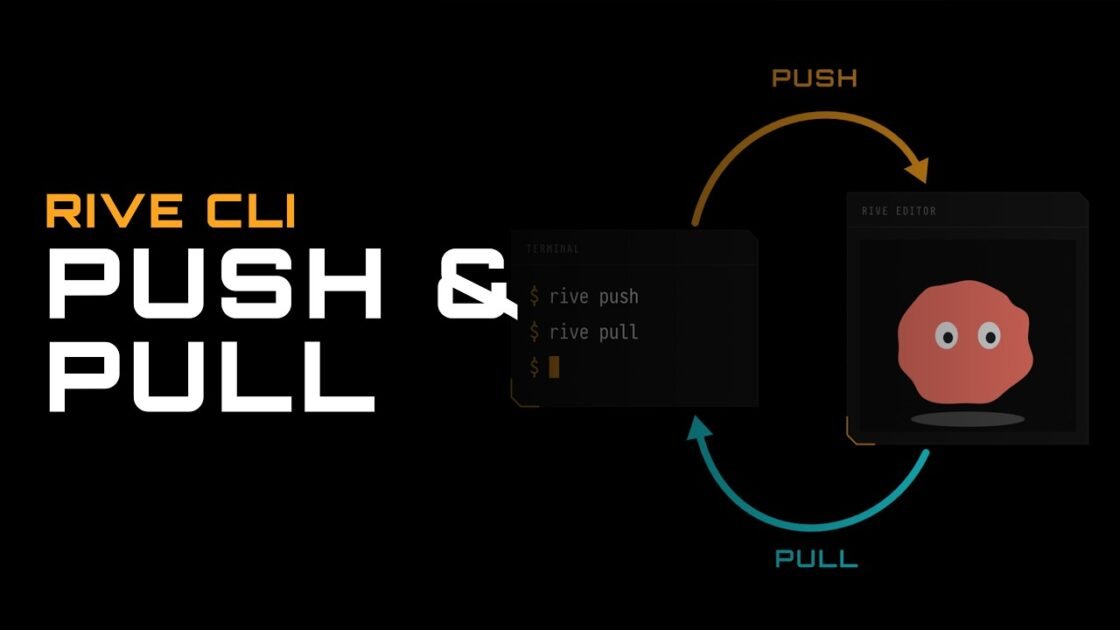
At the very top of the interface, interactive thumbnail cards link directly to comprehensive video tutorials, release notes, and official technical documentation. These resources are designed to walk both beginners and advanced animators through vector design techniques, state machine logic, and runtime implementation. Below the resource links, the dashboard features a curated selection of community examples pulled directly from the public marketplace. These open-source project files allow users to inspect live state machines, inspect complex character rigs, analyze vector layer hierarchies, and see firsthand how interactive assets are constructed by experienced motion designers.
Workspace Architecture and Team Organization
Organization is a fundamental aspect of scaling motion design workflows, especially when collaborating across teams or managing multiple client projects. The sidebar on the left side of the file browser handles directory structures, team permissions, and workspace categorization.
- Workspaces: A default workspace is provided automatically upon account creation. Teams and agencies can establish separate dedicated workspaces to isolate brand assets, client work, and internal design systems.
- Personal Files: Situated within the active workspace, the Personal Files directory serves as the default location for individual projects and private drafts.
- Folder Hierarchy: Within your directories, you can create subfolders to group related assets, build design component libraries, or isolate client deliverables.
- System Directories: The trash folder manages deleted files, allowing users to restore mistakenly removed assets before permanent removal.
Creating and Managing Project Files
Setting up a fresh canvas within the file browser involves straightforward file management procedures:
- Creating New Files: Click the primary New File button located in the top control area of the active directory to generate a blank project instantly.
- Renaming Project Files: Files can be renamed in two convenient ways. You can double-click the file name header directly inside the open editor view, or navigate back to the main file browser list, right-click the file thumbnail, and select the rename option from the contextual menu.
- Tabbed Interface Navigation: Open project files appear as persistent tabs along the top bar of the application window. This tabbed layout allows animators to switch fluidly between active files, copy assets between canvases, and compare design variations without closing their active workspace.
- Reopening Closed Files: If a project tab is closed, simply locate the file entry within your personal files folder or designated workspace directory and double-click its thumbnail to restore the full editing session.
Exploring the Community Marketplace
Beyond individual project storage, the integrated marketplace serves as an invaluable repository for real-time motion graphics. By opening public files directly within the editor, designers can test interactive hover states, review view model data bindings, inspect bone chains and joystick controls, and learn advanced rigging strategies directly from real-world examples.
Mastering these file management fundamentals establishes a clean, scalable workspace, ensuring your interactive projects remain organized, accessible, and ready for advanced design and state machine animation. Youtube