
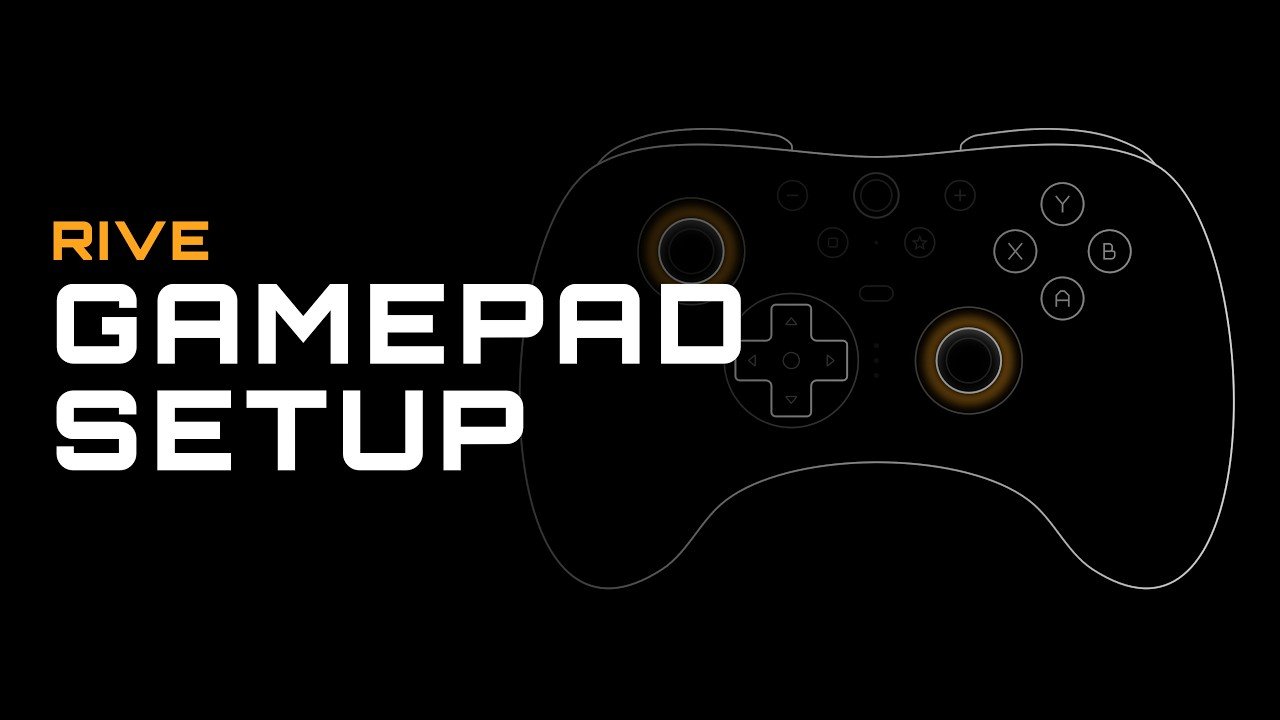
Designing interactive experiences for web applications, desktop software, and video games often requires going beyond basic touch gestures and mouse interactions. Integrating native hardware controls like gamepads, controllers, and joysticks into real-time vector graphics elevates user engagement, providing smooth navigation and dynamic physics feedback. Through the built-in focus architecture and declarative listener framework in Rive, designers can map physical controller buttons, directional pads (D-Pads), and analog thumbsticks directly to animation timelines and state machine logic without writing heavy custom boilerplate code.
Core Mechanics: Hardware Focus Management
Before a state machine can capture hardware inputs from an external gamepad, the target artboard must be configured to capture active focus within the application runtime. Hardware inputs like controller buttons and analog sticks require explicit focus targeting to determine which active canvas processes incoming signals.
Focus setup follows a structured state machine flow:
- Target Focus Designation: The master artboard is flagged as a focusable target in its contextual settings.
- Immediate Focus Initialization: Inside the State Machine layer, an entry state triggers an action that sets active focus directly to the master artboard as soon as the state machine starts executing.
- Visual Indicators: Upon playback, blue highlight indicators outline the corners of the focused artboard, signaling that the canvas container is actively capturing hardware input signals.
Event Listeners for Gamepad Inputs
Configuring controller interactions relies on View Model change listeners connected to the focused artboard target. By selecting Gamepad as the primary listener source, designers access input bindings mapped to physical controller hardware.
+-------------------------------------------------------------------------+
|                        Focused Artboard Canvas                          |
|  (Blue corner indicators signal active focus for incoming signals)     |
+-------------------------------------------------------------------------+
       |                               |                              |
       v                               v                              v
[South/A Button]               [B Button Hold]              [Analog Joystick]
       |                               |                              |
       v                               v                              v
 (Triggers Jump)             (Booleans Toggle)           (Axis -1.0 to +1.0)
       |                               |                              |
       +-------------------------------+------------------------------+
                                       |
                                       v
                     [State Machine Logic & Converters]
                                       |
                                       v
                    (Real-Time Vector Asset Animation)
Mapping Action Triggers (South / A Button)
Action triggers—such as making an animated character or component jump—rely on single-shot trigger properties. Creating a View Model listener set to the Gamepad source lets you target the South button (commonly the A button on Xbox controllers or Cross on PlayStation pads). Pressing the physical button fires the mapped trigger inside the state machine, instantly executing the jump animation sequence.
Mapping Press and Release States (B Button)
Toggle behaviors, color changes, and sustained character actions often rely on Boolean state properties. Setting up a listener for the East button (the B button or Circle) allows you to target both the “On Press” and “On Release” interaction phases. Binding the hardware press state directly to a Boolean property ensures the animation state remains active continuously while the button is held down, reverting automatically upon release.
UI Navigation with D-Pad Controls
Navigating through dynamic UI elements—such as cycling through menu options, inventory slots, or selection cards—utilizes D-Pad directional inputs. Listeners mapped to D-Pad Left and D-Pad Right actions pass signals to numeric converters inside the state machine, incrementing or decrementing selection values to move highlight borders smoothly across nested UI cards.
Handling Analog Joystick Axes and Smooth Vector Motion
Analog thumbsticks operate differently from digital binary buttons. Dual-axis joysticks return continuous float values ranging from -1.0 to +1.0 across both horizontal (X-axis) and vertical (Y-axis) directions, reflecting physical stick displacement.
Translating continuous stick movement into smooth canvas motion involves a multi-property tracking strategy:
- Property Tracking: Define two numeric View Model properties to track the real-time X and Y axis values of the physical stick (e.g., Left Stick X and Left Stick Y). Create additional numeric properties to govern the absolute X and Y positional coordinates of the target visual layer on the canvas.
- Dynamic State Switching: Inside the state machine, establish two alternating loop states conditioned on the analog values. When the stick displacement values do not equal zero (
stick_x != 0orstick_y != 0), the state machine transitions into an active movement state. - Position Converters and Delta Updates: While in the movement loop, actions continuously take the current object position coordinates and add a converted value derived from the active stick axis reading (
Position = Current Position + Axis Delta). This continuous loop smoothly translates physical stick displacement into fluid, responsive spatial movement across the screen.
Scripted Actions and Advanced Hardware Logic
While standard View Model listeners handle most button mappings and axis inputs natively inside the visual editor, complex game physics or custom dead-zone filtering may require programmatic control.
For advanced hardware setups, designers can combine listeners with Listener Action Scripts:
- Editor Scripting: Write custom interaction scripts directly inside the integrated editor or generate script logic using built-in AI coding assistants.
- Listener Action Binding: Inside your View Model listener, select Scripted Action as the primary execution type and bind the custom script file.
- Hybrid Execution: The listener captures hardware events from the gamepad and routes raw data through the custom script, enabling complex dead-zone calculations, vector velocity smoothing, and custom character mechanics before passing values into state machine layers.
Mastering hardware focus management, event listeners, analog axis converters, and scripted actions allows product teams and indie game developers to build fully responsive, hardware-ready interactive graphics and games for web browsers, desktop apps, and console runtimes. Youtube