
Designing responsive user interfaces and dynamic motion graphics requires powerful layout systems capable of adapting to varying screen dimensions, content sizes, and device displays. The introduction of Grid and Stack layout types in Rive expands on existing flexbox-style Row and Column arrangements. By giving designers precise control over multi-dimensional grid structures, cell spanning rules, and front-to-back z-axis stacking, these layout modes streamline complex UI composition, reduce manual keyframing overhead, and unlock responsive vector architecture for mobile applications, web components, and game interfaces.
Understanding Layout Modes: Row, Column, Grid, and Stack
Layout containers govern how child elements—such as vector shapes, dynamic text fields, nested artboard components, and images—position and resize relative to one another. Selecting the appropriate layout type is essential for creating structured UI containers:
- Row Layouts: Position child elements horizontally side-by-side along an X-axis chain.
- Column Layouts: Position child elements vertically stacked along a Y-axis chain.
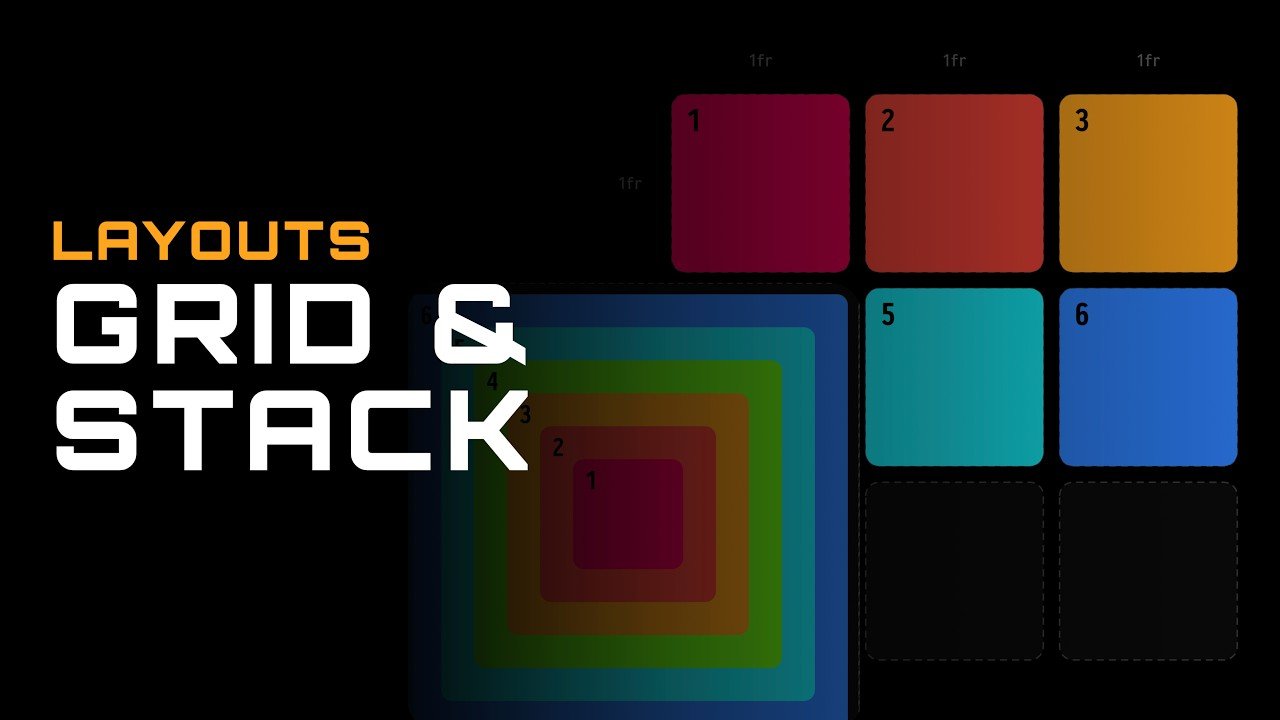
- Grid Layouts: Organize child elements across a multi-dimensional matrix of explicit rows and columns, offering fine-grained control over cell gaps, sizing behaviors, and multi-cell spans.
- Stack Layouts: Place child elements in a shared spatial container where layers overlap along the Z-axis (front-to-back), allowing elements to align independently within the same container bounds.
Core Mechanics of Grid Layouts
Grid layouts bring desktop and mobile CSS grid-like behavior into the vector canvas. When converting a standard layout container to a Grid layout, it defaults to a baseline single-row, single-column matrix that can be expanded dynamically.
Key properties and behaviors of Grid layouts include:
- Axis Configuration: Define exact counts for columns and rows to establish your structural layout framework.
- Gap Controls: Apply numeric pixel spacing between rows and columns to maintain consistent gutters and margins across child elements.
- Sizing Modes: Configure individual rows and columns using Fill (stretching dynamically to occupy available canvas space), Fixed (locking precise pixel dimensions), or Hug (collapsing bounds to fit child content tightly).
- Layout Wrapping and Cell Spanning: Wrapping a child element in a layout container exposes dedicated Grid Cell settings. Designers can set custom column spans or row spans to allow specific cards or media components to stretch across multiple grid cells, pushing neighboring items smoothly into adjacent cells.
- Static Axis Rule: Column and row count properties are structural layout definitions and are not animatable across timeline keyframes. Once defined, the grid framework maintains its explicit row and column matrix while child elements dynamically resize within those bounds.
Building Overlapping UI Layers with Stack Layouts
While Grid layouts manage multi-cell two-dimensional placement, Stack layouts handle depth-based spatial alignment. In a Stack layout, all child containers occupy the exact same layout area, drawing sequentially from back to front based on their order in the Hierarchy tree.
Stack layouts excel at assembling multi-layered UI components, such as item inventory cards:
- Background Fills and Visual Effects: Placed at the bottom of the stack hierarchy to render ambient glows, inner feathers, blend modes (such as additive blending), or gradient fills.
- Media and Content Containers: Centered inside the stack to display character avatars, vector illustrations, or product images set to “Contain” fit mode so graphics scale fluidly without stretching or distorting.
- Text and Details Layers: Positioned over media layers to anchor item titles, descriptions, and category tags along specific container edges, such as bottom-aligned text wrappers using spread-content spacing.
- Badges and Status Tags: Positioned at the top of the stack hierarchy with specific padding offsets to pin status icons, rarity tags, or notification badges to container corners (e.g., top-left corner offsets).
Practical Application: Constructing an Inventory Grid
Combining Grid and Stack layouts enables developers and UI designers to build fully interactive, data-driven interfaces—such as a video game inventory screen—with minimal setup effort.
+-------------------------------------------------------------------+
|                       Top Title Area (Column)                     |
+-------------------------------------------------------------------+
|  Item 1 (Spans 2 Columns)          |  Item 2 (Standard Cell)      |
|  +------------------------------+  |  +------------------------+  |
|  | [Badge]                      |  |  | [Badge]                |  |
|  |         (Image Content)      |  |  |    (Image Content)     |  |
|  | [Title / Category Details]   |  |  | [Details]              |  |
|  +------------------------------+  |  +------------------------+  |
+------------------------------------+------------------------------+
|  Item 3 (Standard Cell)            |  Item 4 (Standard Cell)      |
|  +------------------------------+  |  +------------------------+  |
|  | [Badge]                      |  |  | [Badge]                |  |
|  |         (Image Content)      |  |  |    (Image Content)     |  |
|  | [Details]                    |  |  | [Details]              |  |
|  +------------------------------+  |  +------------------------+  |
+-------------------------------------------------------------------+
Setting up an interactive inventory grid involves a structured workflow:
- Build the Nested Card Component (Stack Layout): Create a reusable item card artboard configured as a Stack layout. Nest background effects, image viewports, text descriptions, and badge labels into overlapping child containers.
- Connect View Model Data Bindings: Bind visual layers inside the card component to View Model properties—such as image assets, title strings, category labels, quantity numbers, rarity enums, and hover state booleans.
- Establish the Parent Layout (Column Layout): Create a primary artboard containing a master Column layout split into a fixed-height header area for titles and a flexible lower container for the grid.
- Configure the Inventory Matrix (Grid Layout): Set the lower container to a Grid layout with three columns and two rows, applying explicit gap spacing between items.
- Populate Components and Apply Spans: Instantiate card components into grid cells. Switch nested instances from Node mode to Layout mode set to Fill/Fill. Wrap featured items inside layout containers to apply custom column spans (e.g., spanning across two columns), allowing featured items to expand while secondary items flow neatly into remaining grid cells.
Combining Grid and Stack layout architecture creates performant, maintainable, and fully responsive vector UI assets ready for real-time web, mobile, and game engine implementation.