
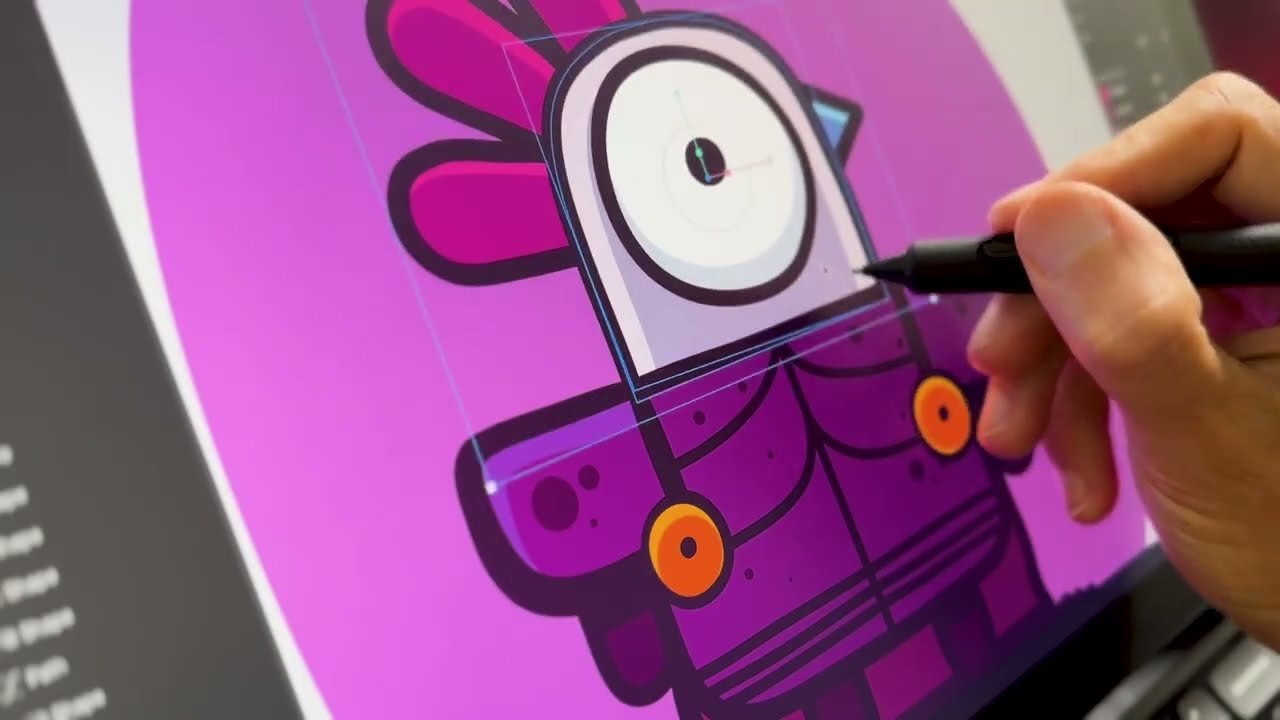
Digital illustration and organic vector drawing workflows inside real-time animation tools are evolving rapidly. The introduction of the freehand Brush tool, non-destructive Eraser, Bucket Fill, and path simplification engine in Rive allows illustrators, character designers, and motion graphics artists to draw expressive vector artwork directly on the canvas.
By unifying freeform brush strokes with structural layer grouping, variable width editing, and skeletal bone rigging, design teams can transition from rough hand-drawn sketches to production-ready interactive vector animations without relying on external illustration software.
Core Mechanics of the Brush Tool
The Brush tool enables fluid, natural drawing directly on the artboard while generating clean vector path geometry under the hood. Understanding how brush strokes interact with selection states and groups is essential for keeping complex character rigs and illustrations organized.
Key brush properties and drawing controls include:
- Group-Level Drawing: Brush strokes can be drawn directly on the main canvas stage or nested inside explicit group containers. Selecting a group or using the Command G shortcut while drawing places new brush strokes straight inside the designated parent container, keeping body parts and visual layers organized.
- Spine-Based Stroke Architecture: Every drawn brush stroke becomes a vector spine inside a brush object.
- Add to Selected Toggle: When the “Add to Selected” option is enabled in the top toolbar, new drawing strokes append directly as additional spines inside the currently selected brush object. Disabling this toggle creates a separate brush object for every new stroke.
- Automatic Color Separation: Changing fill or stroke color values while drawing automatically instantiates a new brush object, ensuring distinct color palettes remain isolated across your layer hierarchy.
- Closed Shape Recognition Gesture: Drawing a loop and holding your pointer or stylus stationary for a brief moment triggers automatic shape recognition, smoothing out vector endpoints to close the path boundary perfectly.
Modifying and Editing Vector Spines
Adjusting hand-drawn line weight, curvature, and node density after drawing is handled through specialized editing tools and Inspector panels.
- Shape Bend Tool (Shift G): Activating the Shape Bend tool allows designers to select vector spines, adjust Bezier control handles, and dynamically tweak stroke thickness across specific points along a line to create variable line weight effects.
- On-the-Fly Modifier Shortcuts: While actively drawing with the Brush tool, holding the Command key temporarily switches your pointer to the Shape Bend tool for quick stroke adjustments. Releasing the key returns you instantly to active drawing mode.
- Brush Spine Panel Controls: The Brush Spine panel inside the Inspector provides direct numeric control over global stroke width, spine profiles, and total vertex counts across vector paths.
Non-Destructive Erasing and Vector Bucket Fills
Erasing vector geometry and filling enclosed drawing areas relies on dedicated tools engineered to work seamlessly alongside brush spines.
+-------------------------------------------------------------------------+
|                        Hand-Drawn Vector Canvas                         |
+-------------------------------------------------------------------------+
       |                               |                              |
       v                               v                              v
[Brush Tool (Shift B)]       [Eraser Tool (Shift C)]      [Bucket Tool (Shift U)]
       |                               |                              |
       v                               v                              v
(Generates Spines)          (Trims Active/Global Spines)   (Fills Enclosed Vector Shapes)
       |                               |                              |
       +-------------------------------+------------------------------+
                                       |
                                       v
                         [Vector Flattening & Simplify]
                                       |
                                       v
                    (Bone Rigging & State Machine Animation)
Vector Eraser Tool (Shift C)
The Eraser tool shares key properties with the Brush tool, allowing artists to erase vector paths with natural pressure sensitivity and custom brush sizes.
- Global vs. Targeted Erasing: If no elements are selected, the Eraser tool trims all intersecting brush spines across the active canvas. Selecting a specific brush object isolates the eraser effect strictly to that single vector layer, leaving surrounding artwork untouched.
- Quick Toggle Shortcut: Holding the Option key while using the Brush tool temporarily activates the Eraser tool, letting you erase unwanted strokes without interrupting your drawing session.
- Editable Eraser Paths: Like brush strokes, erased regions remain fully editable using the Shape Bend tool or the Brush Spine panel.
Vector Bucket Tool (Shift U)
The Bucket tool calculates enclosed areas bounded by vector strokes and generates a new, filled vector shape automatically inside the target zone. Alternatively, artists can shade shapes directly using brush strokes with “Add to Selected” toggled on, allowing all fill strokes to convert into a single unified shape upon flattening.
Preparing Hand-Drawn Vector Art for Skeletal Rigging and Animation
Freehand brush artwork can be animated immediately using standard spatial properties like X/Y translation, scale, rotation, and opacity. However, preparing hand-drawn assets for complex mesh deformation, vertex keyframing, or skeletal bone binding requires converting brush spines into standard vector geometry.
Optimizing vector brush art for animation follows a clear two-step workflow:
- Flattening Vector Brushes: Executing a Flatten command converts parametric brush strokes into editable filled shapes with explicit outer boundary paths and anchor points.
- Mesh Simplification: Because freehand drawing can generate dense node counts, applying the Simplify path option reduces total vertex counts significantly while preserving original line geometry and visual fidelity.
Reducing node density optimizes rendering performance, lowers CPU/GPU overhead, and makes it easy to bind vector vertices cleanly to skeletal bone chains and mesh deformers for interactive state machine animations. Youtube