
Building real-time interactive motion graphics no longer requires relying exclusively on graphical user interfaces. The Rive Command Line Interface (CLI) introduces a programmatic workflow that brings real-time vector animation, layout structuring, state machine logic, and data binding straight to the terminal. By converting complex project binary structures into human-readable text files, developer and animator workflows can seamlessly leverage artificial intelligence agents to generate, inspect, and modify interactive assets programmatically.
Understanding the Rive CLI and RML (Rive Markup Language)
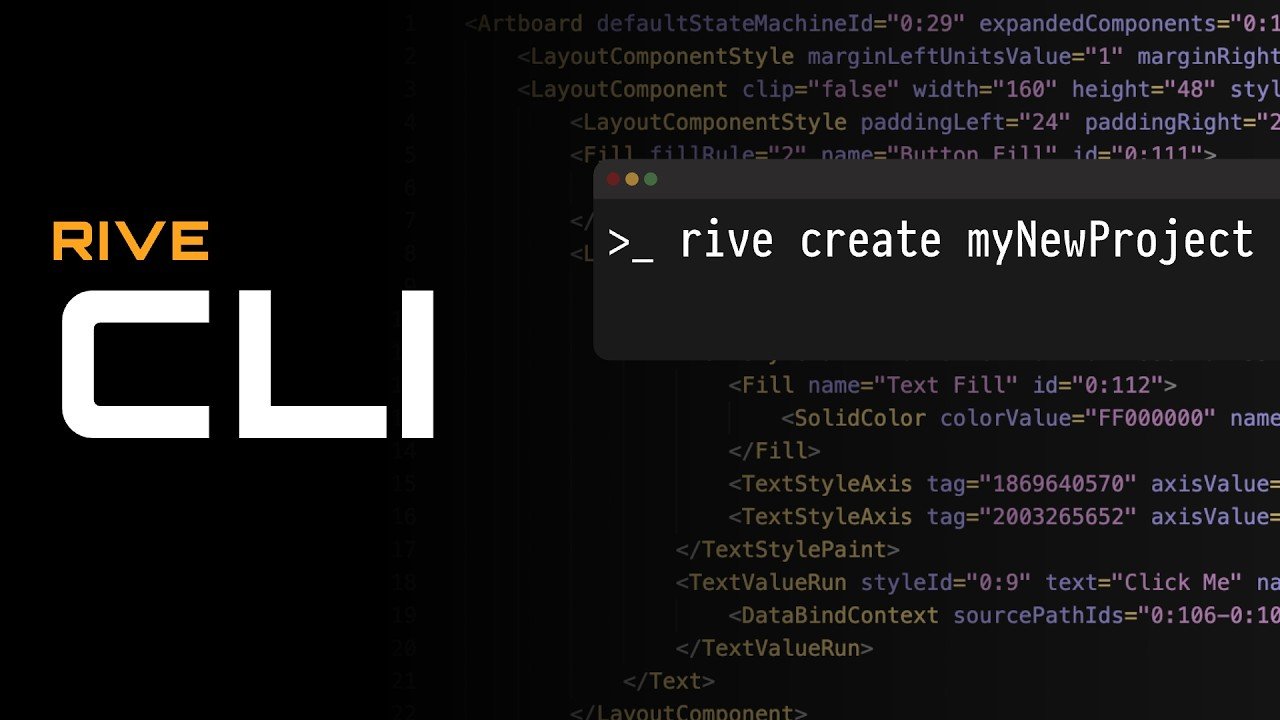
The core architecture behind the CLI relies on Rive Markup Language (RML), a human-readable and machine-parseable declarative text format. RML represents every component of an interactive vector graphics file—from artboards, layout nodes, procedural vector paths, text styles, and gradient fills to view model properties, state machine logic, listeners, and timeline keyframes.
Key benefits of RML and terminal-based workflows include:
- Text-Based Source Control: Because RML files store scene setups as readable text rather than opaque binary blobs, motion graphics assets can be version-controlled, compared with diffs, and merged using standard Git repositories.
- AI Agent Compatibility: Generative AI tools and coding assistants can directly read, interpret, write, and manipulate RML code. This enables developer-agent workflows where text prompts generate dynamic UI components, state machine transitions, and complex interactive graphics.
- Real-Time Local Previewing: The CLI provides a standalone preview renderer, allowing developers and designers to test interactive hover states, state transitions, runtime listeners, and dynamic inputs locally without launching the main desktop editor application.
Installation and Workspace Setup Commands
Getting started with the terminal workflow involves a simple terminal setup process executed directly on macOS, Linux, or Windows command-line environments.
Essential setup steps and installation commands:
- Terminal Installation: Copy and execute the official installation script using cURL inside your terminal prompt. This installs the binary executable across your local environment paths.
- Documentation and Analytics: Running initial documentation commands inside the terminal grants access to system references, usage guides, and syntax structures for RML development.
- Sample Projects: Built-in sample repositories—such as interactive pointer-reactive graphics—can be generated into any target directory to inspect how RML structures artboards, paths, inputs, and listeners.
Generating and Structuring CLI Projects
Project creation via the terminal generates a clean, modular file directory equipped with all necessary metadata for local compilation and AI agent orchestration.
Executing the primary project creation command generates three foundational files inside your target directory:
- Project Manifest (
rive.yaml): Houses essential CLI project configurations, asset path mappings, build settings, and environment metadata required for compilation. - Scene Markup File (
scene.rml): The primary declarative scene file containing artboard dimensions, vector layer hierarchies, property fills, layout parameters, timeline keyframes, and state machine transition rules. - Agent Instructions (
AGENTS.md): A specialized configuration file providing context, references, and operational instructions tailored specifically for AI coding assistants. This document guides agents on how to correctly structure RML code, implement view model data bindings, and handle state machine logic.
AI Agent Integration and Automated Asset Authoring
The true power of the terminal workflow emerges when pairing the CLI with advanced AI coding assistants. Rather than manually drawing vector paths or setting up complex state machine logic node-by-node, developers can issue high-level instructions to an AI agent directly from the terminal.
A practical automated workflow unfolds across distinct phases:
- Natural Language Prompting: Issue natural language commands requesting functional UI components—such as an interactive button with data-bound text labels, custom color palettes, and distinct hover, idle, and click states.
- Autonomous Asset Generation: The AI agent reads the embedded
AGENTS.mdguidelines, writes the corresponding declarativescene.rmlsyntax, sources necessary assets like custom typography fonts, and compiles build snapshots to verify visual output. - Real-Time Hot Reloading: Running the live preview command opens a local window displaying the compiled canvas. Modifying values directly inside the
scene.rmlfile—such as changing hex color codes, text fills, or layout dimensions—instantly updates the live preview window without interrupting active state machine interactions.
Seamless Editor Synchronization and Hybrid Workflows
The CLI does not replace the graphical editor; instead, it creates a powerful bridge between text-based code generation and visual design refinement.
Integrating terminal output with the editor:
- Full Editor Compatibility: Projects created or updated via RML can be opened directly inside the desktop or web editor. All view model data bindings, state machine inputs, timelines, and layout configurations generated programmatically transition seamlessly into visual layers.
- Visual Polishing and Refinement: Designers can pick up where AI agents left off. Open the generated file visually to tweak keyframe interpolation curves, add advanced layer effects like inner shadows or blur feathering, adjust stroke profiles, or fine-tune state transition timings.
- Ongoing Versioning and Updates: Because the CLI receives continuous performance updates and syntax extensions, checking your installed system version via version commands ensures access to the latest RML capabilities, shader features, and runtime performance optimizations.
Combining terminal automation, AI agent orchestration, human-readable RML text formatting, and real-time visual editing establishes a modern paradigm for creating performant, interactive vector animations for apps, games, and modern web environments. Youtube